WordPress powers 42.2% of all websites on the internet. With over 59,000 free plugins available and the average site running 12-15 of them, fatal errors and conflicts aren’t a matter of if; they’re a matter of when two tools exist to help you recover. Recovery Mode, built into WordPress core, and Safe Mode (Troubleshooting Mode), available via the free Health Check & Troubleshooting plugin. But they solve different problems at different stages of failure.
Key Takeaways
- Recovery Mode activates automatically when WordPress detects a PHP fatal error, emailing the admin a secure bypass link (introduced in WordPress 5.2, May 2019).
- Safe Mode (Troubleshooting Mode) is manual - you activate it to disable all plugins and switch themes for your browser session only, without affecting visitors.
- 96% of WordPress vulnerabilities originate in plugins, making both tools essential for any site owner.
- Use Recovery Mode when your site is already down; use Safe Mode to diagnose issues before they escalate
Comparison: Recovery Mode vs Safe Mode
| Category | Recovery Mode | Safe Mode |
| Trigger | Automatic (PHP fatal error detected) | Manual (admin activates it) |
| Access method | Email link to wp-admin | Toggle in Site Health or the Health Check plugin |
| What it disables | Only the specific broken plugin/theme | All plugins + active theme (for your session) |
| Visitor impact | The site may still show an error to visitors | The site may still show error to visitors |
| Requires plugin? | No, built into WordPress core (5.2+) | Yes, Health Check & Troubleshooting plugin |
| WP_DEBUG needed? | No | No (but complementary) |
| Best for | Crashed sites you can’t access | Pre-emptive debugging, conflict isolation |
| Admin email required? | Yes, to receive the recovery link | No |
What Problem Does Each Mode Actually Solve?
Recovery Mode and Safe Mode solve different problems at different stages of a WordPress failure.
Recovery Mode handles the emergency. When WordPress detects a PHP fatal error, the kind that triggers the white screen of death, it automatically emails the site administrator a secure, temporary link. That link opens wp-admin with only the problematic plugin or theme paused, letting you deactivate it properly. Before WordPress 5.2 shipped in May 2019 (WordPress.org), a fatal error simply locked you out of your dashboard with no built-in recovery path.
Safe Mode prevents the emergency. Installed via the free Health Check & Troubleshooting plugin, it lets you disable all plugins and switch to a default WordPress theme, but only for your browser session. Other visitors see the site running normally while you diagnose. This is the right tool when something feels wrong after an update, a feature breaks, or you suspect a conflict before a crash happens.
The clearest way to frame it: WordPress Recovery Mode is reactive, WordPress triggers it for you after something breaks. Safe Mode is proactive; you trigger it yourself before things break. If you’re relying on Recovery Mode, something has already gone wrong.
How Do You Activate Each Mode?
Understanding activation is key: one mode requires nothing from you, the other requires a plugin and deliberate action.
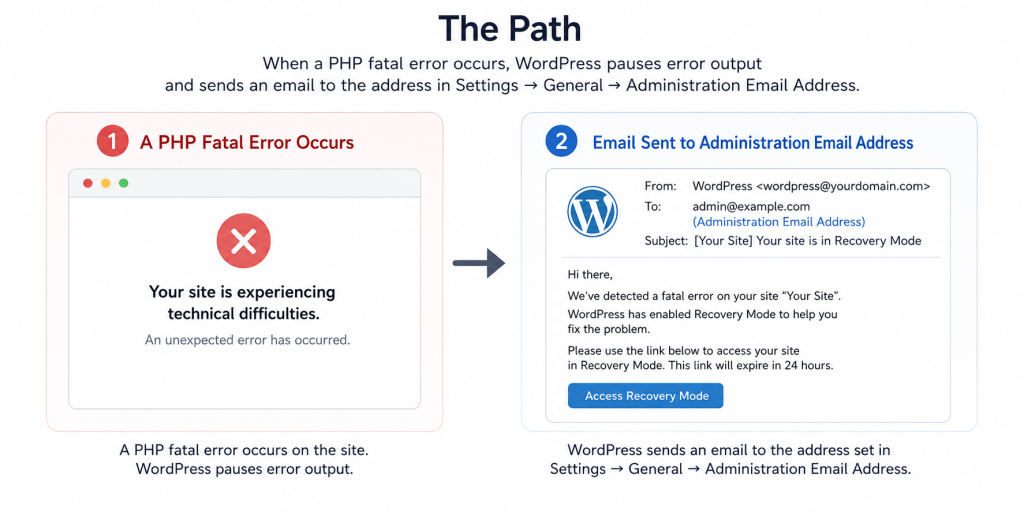
Activating Recovery Mode (automatic): You don’t activate Recovery Mode; WordPress does. When a PHP fatal error occurs, WordPress pauses error output and sends an email to the address in Settings → General → Administration Email Address. The email contains a unique link valid for 24 hours. Click it, and you’re in wp-admin with the broken component paused. From there, deactivate the plugin or theme, then exit recovery mode via the banner at the top of the screen.
Activating Safe Mode (manual):
- Install the Health Check & Troubleshooting plugin from WordPress.org
- Go to Tools → Site Health → Troubleshooting tab
- Click Enable Troubleshooting Mode
- WordPress disables all plugins and switches to a default theme, but only in your browser session
- Re-enable plugins one by one to isolate the conflict
- Click Disable Troubleshooting Mode when you’re done
The session isolation is Safe Mode’s biggest advantage: your visitors see an unaffected site the entire time you’re debugging.
Which Mode Protects Visitors During Debugging?
Safe Mode wins here, and the gap matters on live production sites.
Safe Mode (Troubleshooting Mode) is session-scoped: only the browser session that activated it sees plugins disabled and the default theme applied. Every other visitor sees the site exactly as it was before you started debugging. You can reproduce the error, isolate the conflicting plugin, and fix it without a single visitor experiencing downtime.
Recovery Mode works differently. When WordPress enters Recovery Mode and pauses the broken component, your site may still display a fatal error to visitors until you deactivate the problematic plugin and exit recovery mode. Depending on your caching setup, some visitors might see a cached version, but you can’t count on it.
In practice: If your site is already showing a fatal error to visitors, you’re in damage control. Recovery Mode is your fastest path back in. But if you catch a problem early (a plugin update just dropped, something feels off), triggering Safe Mode before anything crashes means your visitors never see a broken page.
According to a 2025 Melapress survey of 264 WordPress professionals, 96% experienced at least one security or stability incident, yet only 27% had a recovery plan in place. Safe Mode is exactly the kind of proactive practice that keeps you in the majority who never need emergency recovery.
Which Mode Is Better for Diagnosing Plugin Conflicts?
Safe Mode is better for systematic conflict diagnosis. WordPress Recovery Mode is better for emergency access.
Patchstack’s 2025 annual report found 7,966 new WordPress vulnerabilities in 2024, 34% increase over 2023, averaging 22 new vulnerabilities published daily. The first half of 2025 alone produced 6,700 more. With 96% of those vulnerabilities in plugins, and the average site running 12-15 of them, the odds of a conflict are real and rising.
Safe Mode’s advantage for diagnostics: Because you control when it activates, you can run a methodical bisect:
- Enable Troubleshooting Mode to disable all plugins
- Confirm the issue disappears
- Re-enable plugins one at a time, testing after each
- When the issue reappears, you’ve found the conflicting plugin
- Disable Troubleshooting Mode, then deactivate only that plugin
WordPress Recovery Mode’s limitation for diagnostics: It only pauses the specific plugin WordPress identified as causing the fatal error, not all plugins. That’s useful for immediate access, but if the real cause is a conflict between two plugins (rather than a single broken one), Recovery Mode may resolve the symptom without fixing the root cause.
Does Each Mode Work Without Email Access?
This is where Recovery Mode has a real limitation, and most guides don’t mention it.
WordPress Recovery Mode depends entirely on WordPress being able to send an email to the admin address. If your site can’t send emails (no SMTP configuration, broken mail function, aggressive spam filtering), the recovery link never arrives. Your fallback becomes manual FTP/SFTP access: rename the wp-content/plugins folder to force-deactivate all plugins, then regain wp-admin access to fix the issue.
Safe Mode has no email dependency. You activate it directly from wp-admin, requiring only that you can log in. The plugin installs like any other, and Troubleshooting Mode activates with a single button click.
What if you can’t access WP-Admin at all? Neither mode helps you then. You’re in full manual recovery:
- Rename wp-content/plugins/ to wp-content/plugins-disabled/ via FTP or your host’s file manager
- Replace your active theme folder with a default WordPress theme
- Access your database via phpMyAdmin to deactivate plugins directly in the wp_options table
The practical takeaway: after recovering from any crash, install an SMTP plugin (WP Mail SMTP is the most widely used) so future Recovery Mode emails actually arrive.
WP_DEBUG: The Third Tool You Should Know
Recovery Mode and Safe Mode handle access and isolation. WP_DEBUG tells you why something broke.
WP_DEBUG is a PHP constant set in wp-config.php. When enabled, it surfaces all PHP errors, warnings, and notices that WordPress normally suppresses. Combined with WP_DEBUG_LOG, errors are written to wp-content/debug.log instead of appearing on screen.
Enabling WP_DEBUG (staging/local environments only):
define( 'WP_DEBUG', true );
define( 'WP_DEBUG_LOG', true );
define( 'WP_DEBUG_DISPLAY', false ); // Keeps errors out of visitor view
How the three tools work together: Use Safe Mode to isolate which plugin is causing the issue. Enable WP_DEBUG to see why that plugin is failing. Recovery Mode is your fallback if the site crashes before you can run either. Each tool addresses a different question, don’t substitute one for another.
Important: Never enable WP_DEBUG on a live production site with WP_DEBUG_DISPLAY set to true. Error output can expose file paths, database structure, and configuration details to anyone viewing your site source.
Who Should Use Each Mode?
Site owners who received the “critical error” email: Use WordPress Recovery Mode. Click the link, deactivate the flagged plugin, exit recovery mode, and test. It’s the fastest path back to a working site when WordPress has already detected the problem for you.
Developers and agencies applying updates to client sites: Use Safe Mode before applying updates. Activate Troubleshooting Mode, run the update, and verify everything works. If something breaks, only your session is affected; clients see an uninterrupted site. Diagnose, fix, then disable troubleshooting mode.
Site owners investigating slow performance or broken features: Use Safe Mode. Disable all plugins, confirm whether the issue disappears, then re-enable them one at a time. WP_DEBUG in a staging environment adds error-level detail when needed.
Developers debugging custom code: Use WP_DEBUG on a local or staging environment. Recovery Mode and Safe Mode are for plugin/theme conflict isolation; they won’t surface code-level errors the way WP_DEBUG does.
If you can’t access the WP-Admin at all and no email arrived: Neither mode is available. You need FTP/SFTP filesystem access or your hosting provider’s support team to rename the plugins directory.
Frequently Asked Questions
Is WordPress Recovery Mode the same as Safe Mode?
No. Recovery Mode is built into WordPress core (since version 5.2) and activates automatically when a PHP fatal error is detected, emailing the admin a temporary bypass link. Safe Mode: formally called Troubleshooting Mode, requires the Health Check & Troubleshooting plugin and is manually activated to disable plugins and themes for your browser session only. They target the same problem space but at different stages of a failure.
Can I use both WordPress Recovery Mode and Safe Mode together?
Not simultaneously, but sequentially. If Recovery Mode activates after a crash, use it to regain admin access, then install the Health Check plugin and switch to Troubleshooting Mode for systematic conflict diagnosis. Recovery Mode gets you in; Safe Mode helps you find the root cause and prevent the next crash.
What if I don’t receive the WordPress recovery mode email?
Check your spam folder first. If the email genuinely isn’t arriving, your site can’t send transactional email, common on shared hosting without SMTP configured. Your fallback: use FTP/SFTP to rename wp-content/plugins/ to wp-content/plugins-disabled/, which force-deactivates all plugins. After recovering, install an SMTP plugin (WP Mail SMTP is the most used, with over 3 million active installs) to ensure future recovery emails arrive.
Does Safe Mode affect other visitors on my site?
No, that’s its most important feature. The Health Check plugin’s Troubleshooting Mode is session-scoped: only the browser that activated it sees plugins disabled and the default theme active. All other visitors experience the site normally. This makes it safe to use on live production sites in a way that WP_DEBUG with display enabled is not.
What WordPress version introduced Recovery Mode?
Recovery Mode shipped in WordPress 5.2, released on May 7, 2019. Before 5.2, a PHP fatal error produced only a white screen with no built-in admin bypass. WordPress’s auto-update mechanism means virtually every active installation is already on 5.2 or later. Recovery Mode is available everywhere without any setup.
WordPress Recovery Mode vs Safe Mode
| Category | Winner |
| Emergency crash recovery | Recovery Mode |
| Visitor protection during debugging | Safe Mode |
| Plugin conflict diagnosis | Safe Mode |
| No email dependency | Safe Mode |
| Zero setup required | Recovery Mode |
| Systematic conflict isolation | Safe Mode |
| For live production sites | Safe Mode (proactive beats reactive) |
WordPress Recovery Mode is a safety net built into WordPress core; it’s there for when things go wrong unexpectedly. Safe Mode is the better practice: activate it before applying updates, use it to systematically isolate conflicts, and protect visitors while you debug. If you take one action after reading this, install the Health Check & Troubleshooting plugin and get comfortable with Troubleshooting Mode before your site needs Recovery Mode.
New plugin submissions to WordPress.org grew 87% year-over-year in 2025; the plugin ecosystem is only growing, and so is conflict risk. Both tools belong in every WordPress site owner’s toolkit.
Still not sure whether you’re dealing with a plugin conflict, a broken theme, or something deeper? If Recovery Mode sent you an email and Safe Mode didn’t isolate the culprit, the issue is likely beyond a simple bisect. Contact us; we diagnose WordPress fatal errors, plugin conflicts, and white screen of death issues daily, and we’ll tell you exactly what broke and why.